Linux Mint already gives you a solid desktop experience out of the box, and the current 22.2 LTS line is supported until 2029. Also, the pre-installed tools handle basic web browsing and file management flawlessly.
However, to transform this fresh installation into a true daily driver, you need the right applications. On my own fresh Mint installs, I start with a small set of apps that cover the things I normally require for my day-to-day work.
Let me walk you through my personal post-install checklist. These are the absolute best free programs you should grab right out of the gate to make your Linux Mint experience unbeatable.
1. GIMP
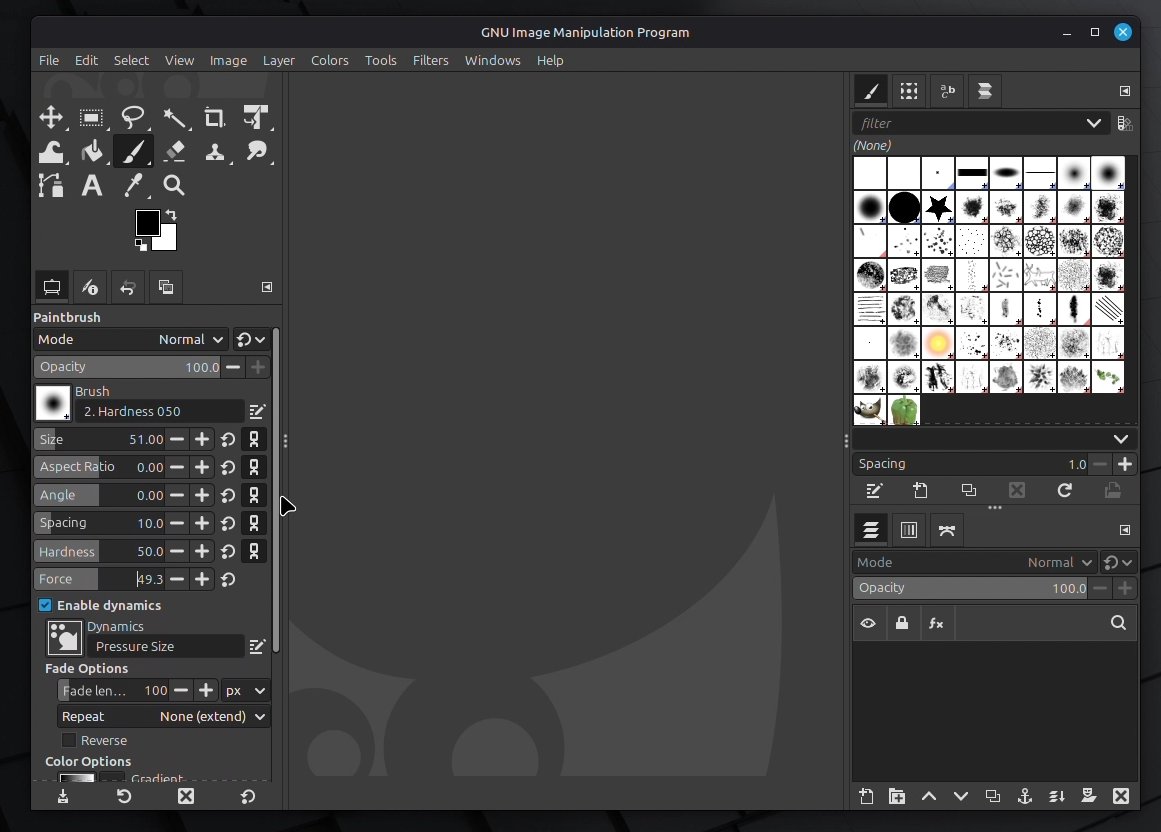
If you regularly resize images, crop screenshots, create thumbnails, or clean up graphics, then the one software that does it all is GIMP. It’s a powerful free and open-source image editor that rivals many paid tools, making it one of the first applications worth installing on a fresh Linux Mint system.
Although it’s often compared to Adobe Photoshop, GIMP is not just for professional designers. It is extremely useful for everyday tasks such as preparing blog images, editing profile pictures, fixing awkward screenshots, or creating simple graphics for social media. Even if your needs are basic, having a capable image editor ready to go saves time and avoids relying on limited online tools.
Talking about the interface, to be honest, it can feel slightly unfamiliar at first, especially if you are coming from simpler image editors, but it becomes comfortable after a short learning period. Once you understand how layers, selections, and basic tools work, you will quickly see how capable GIMP really is. It can handle background removal, photo retouching, banner design, digital artwork, and exporting images in many different formats.
Recent releases have brought noticeable improvements in performance, layer handling, and color management, making GIMP smoother and more reliable on modern Linux Mint systems.
To get it on your Linux Mint, simply open the Software Manager from the start menu. After that, search for GIMP in the search bar, and once it shows up, install it with a single click.
If you prefer using the terminal, you can also install it quickly by running this:
sudo apt install gimpYou can also explore additional plugins that add features like batch processing, advanced filters, and RAW photo support to turn your GIMP into a complete creative toolkit that grows along with your needs.
2. Flameshot
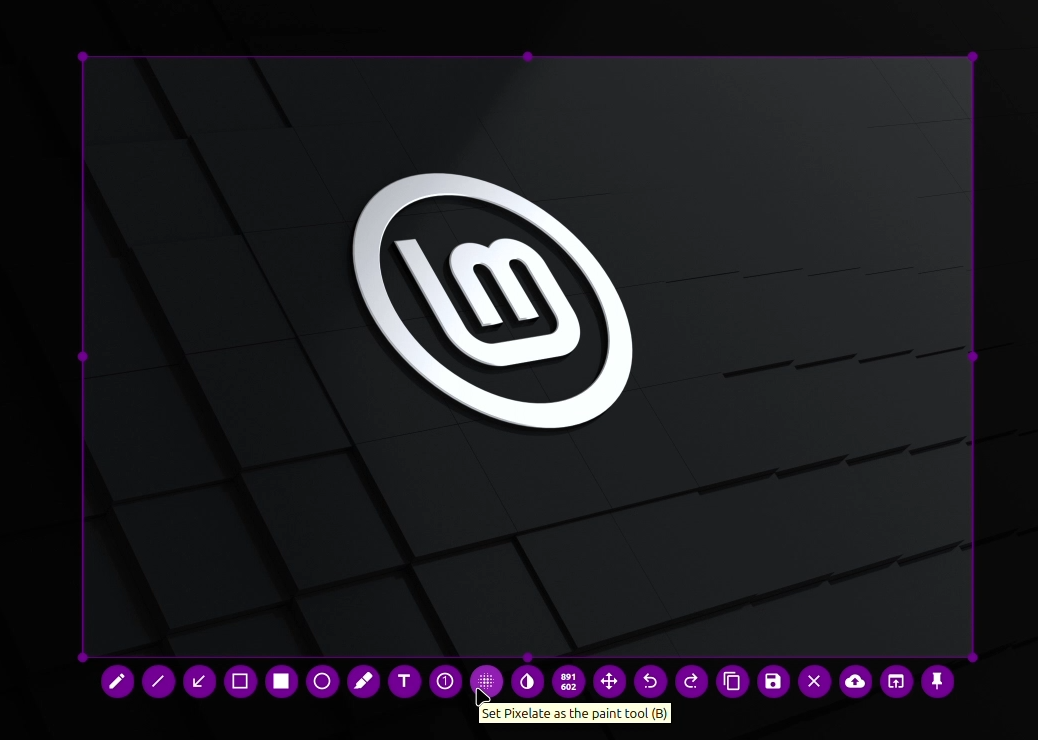
Don’t get me wrong, the default screenshot tool included with Linux Mint works well for simple captures, but Flameshot takes screenshots to another level. Instead of just saving an image, Flameshot lets you instantly edit and annotate your screenshot the moment you capture it. This makes it far more practical for everyday use, especially when you need to explain something visually.
Also, Flameshot integrates smoothly into the Linux Mint system tray and can be assigned to the Print Screen key for fast access. Once configured, capturing and annotating screenshots becomes almost effortless.
After selecting a screen region, Flameshot opens a lightweight editor directly on the screen. You can add arrows, text labels, highlights, shapes, and even blur sensitive information before saving the image.
To me, it’s incredibly helpful when creating tutorials, documenting software bugs, or sending clear instructions to someone. Instead of taking a screenshot and editing it later in another program, everything happens in one quick step.
The tool also includes useful extras such as a built-in color picker and quick copy-to-clipboard options, which make it even more convenient for daily work.
Just like GIMP, installing Flameshot is also straightforward. You can easily get it from the Software Manager. Or if you prefer the terminal, run:
sudo apt install flameshotAfter installation, make sure you assign the Print Screen key to Flameshot through the Keyboard Shortcuts settings so you can start using it instantly whenever you need a screenshot.
3. LocalSend
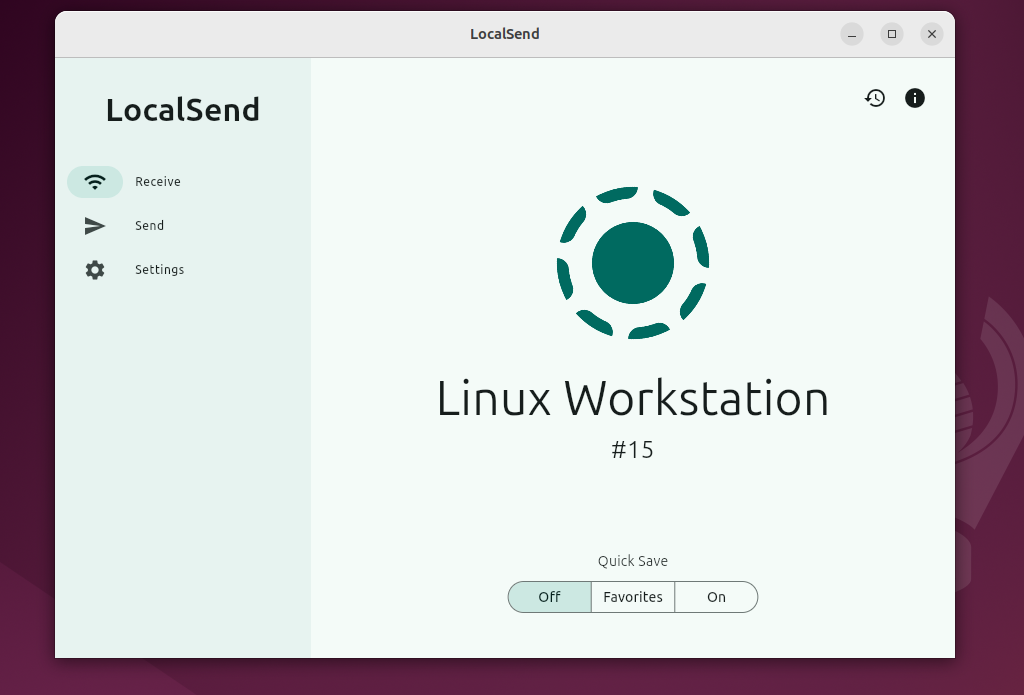
Although there are several tools available for Linux that you can use to transfer files between your phone and your Linux system, I found LocalSend a simple and elegant way for file sharing between devices effortlessly. LocalSend allows you to send files directly between devices connected to the same Wi-Fi network, whether it’s Android or iOS. You can easily drag and drop photos, videos, documents, or even large folders, and the transfer begins instantly. There is no need to create accounts, sign in to services, or depend on internet-based cloud platforms.
One thing I really like about LocalSend is privacy. Because it works entirely over your local network, your data never leaves your home or office network. This makes it a great choice for users who want fast transfers without trusting third-party servers with their personal files. It is especially useful for quickly moving screenshots from your computer to your phone, sharing videos with family members, or transferring documents between multiple devices.
Further, the interface is clean, and devices on the same network are automatically detected, allowing you to start transferring files within seconds. Performance is also impressive, as transfer speeds depend on your local Wi-Fi network rather than internet bandwidth, making large file transfers much faster than cloud-based methods.
Again, you can easily find it in the Software Manager and install it with just one click. After installation, install the LocalSend app from your phone’s app store to make seamless cable-free file transfers whenever you need them.
4. OBS Studio
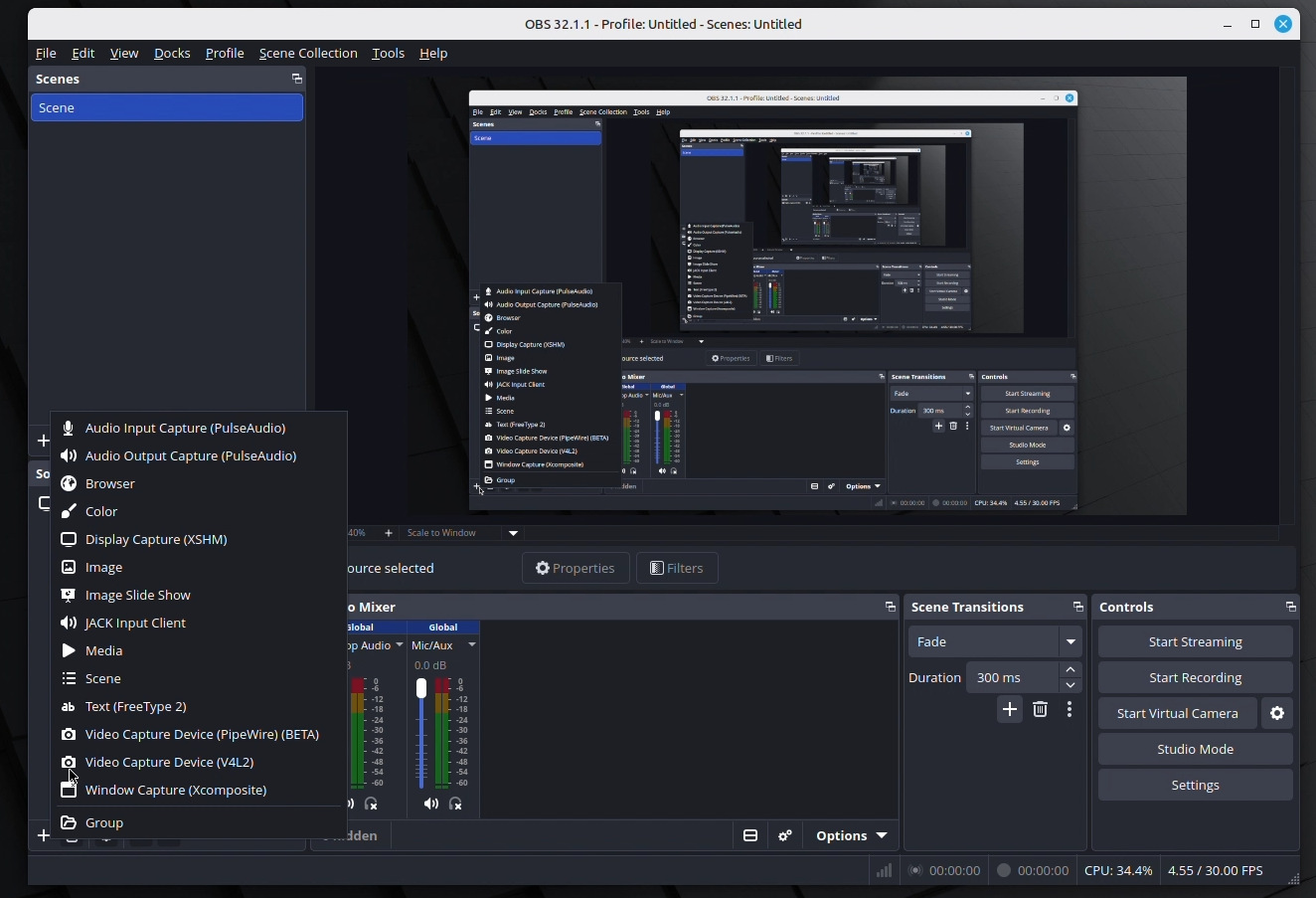
If you record tutorials, capture gameplay, or create video content, OBS Studio is one of the most valuable tools you can install on Linux Mint. It transforms your desktop into a small recording studio, giving you professional-level recording and streaming features without requiring expensive software or subscriptions.
OBS Studio allows you to capture your screen, webcam, and audio sources in real time. One of its standout features is the ability to create multiple scenes, each containing different layouts, windows, or camera inputs. This makes it ideal for recording step-by-step tutorials, streaming live gameplay, hosting presentations, or creating polished video content with smooth transitions between scenes.
Further, OBS produces high-quality recordings with no watermarks, and it gives you complete control over audio levels through its built-in mixer. You can combine microphone input, system audio, and background sounds while adjusting them in real time, which is especially useful for clear and professional recordings.
Modern versions of OBS Studio also support hardware encoding on many graphics cards, allowing your system to record smoothly without placing too much strain on the CPU. This makes it suitable even for mid-range systems running Linux Mint, particularly when recording longer sessions or higher-resolution videos.
You can find OBS Studio directly in the Software Manager and install it using the terminal with the command sudo apt install obs-studio. Many users also prefer installing the Flatpak version from Flathub, as it often provides the latest updates and improved compatibility.
Once installed, you can set up your recording scenes once and reuse them whenever you need to capture your screen, stream content, or create professional-looking videos.
5. Kdenlive
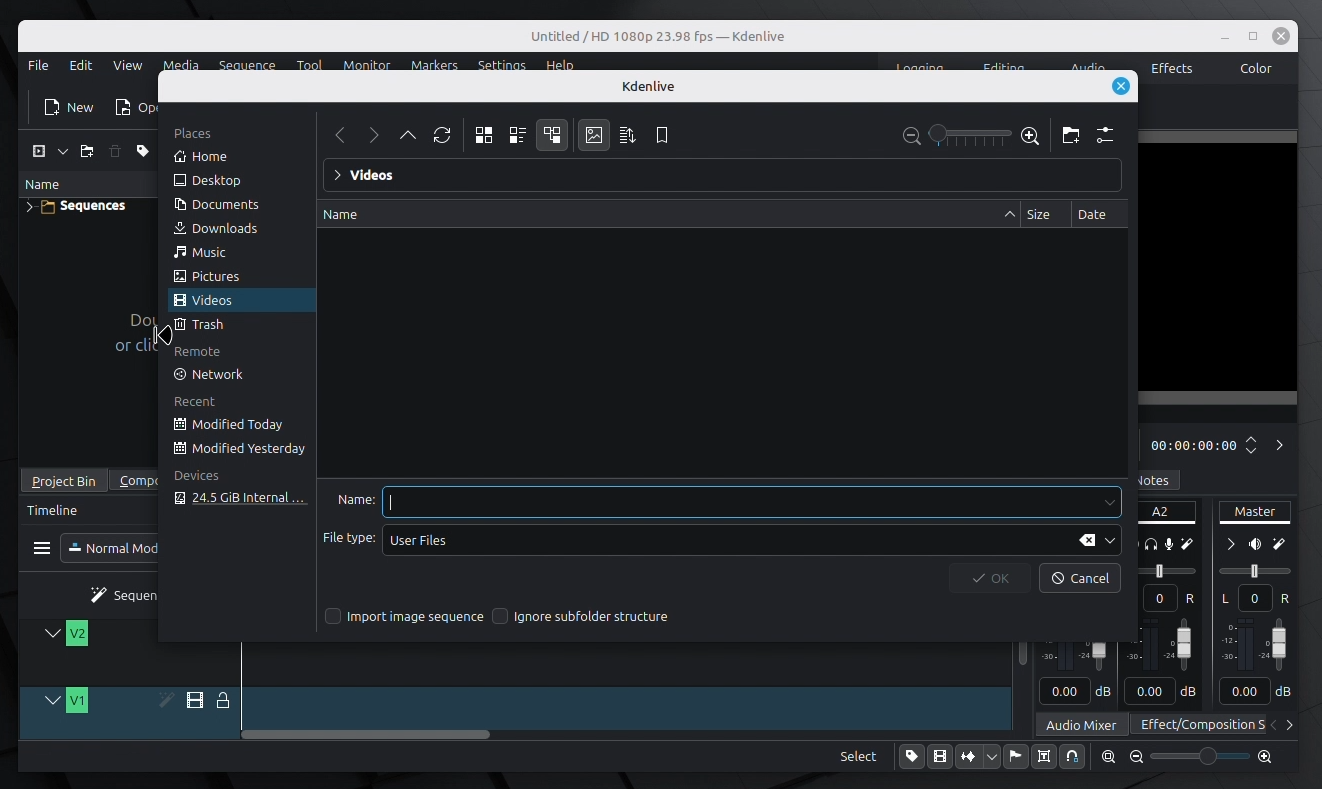
Kdenlive is one of the best tools you can install right after setup on your Linux Mint machine. It’s a free and open-source video editor that gives you a professional editing workflow without requiring expensive subscriptions or proprietary software.
Kdenlive follows a traditional non-linear editing style, which makes it comfortable for users who have worked with video editors before. The timeline is clear and intuitive, allowing you to arrange clips across multiple tracks, add transitions, apply visual effects, and adjust audio levels with precision. Whether you are editing short clips, tutorial videos, YouTube content, or family footage, it provides the tools needed to produce polished results.
The reason I love it is because it is not as basic as CapCut and also not as heavy as Premiere Pro; it balances power and usability. You can trim clips, add titles, apply color correction, and mix audio without feeling overwhelmed by complicated controls. At the same time, more advanced users can take advantage of features like motion tracking, proxy editing for smoother performance, and multi-track workflows that handle large projects without slowing down your system.
You can find Kdenlive in the Software Manager or install it using the terminal with the command sudo apt install kdenlive. Many users also prefer installing the Flatpak version because it usually receives updates faster and includes the latest features.
6. Stacer
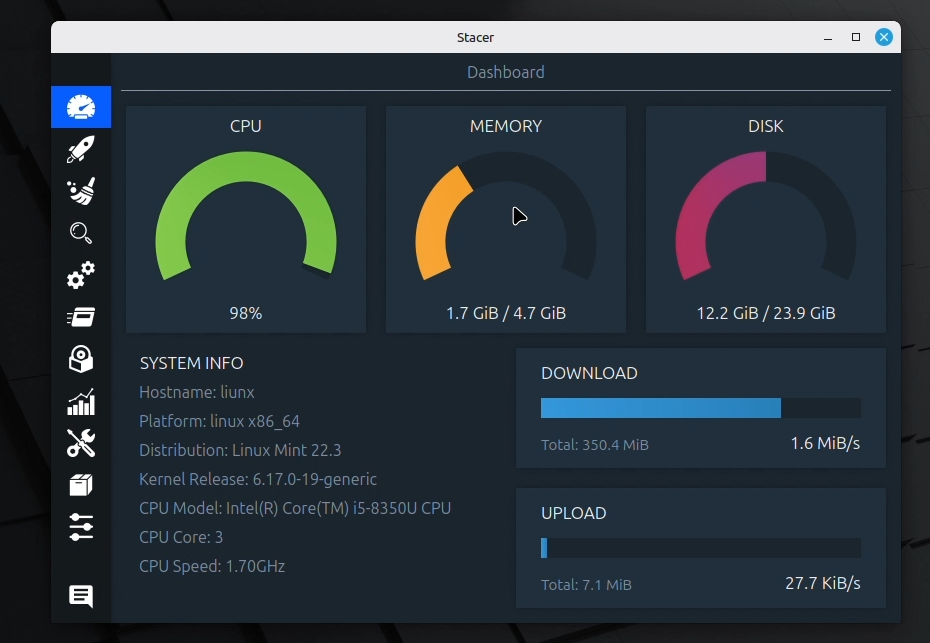
Linux Mint is already known for being fast and efficient, but Stacer adds an extra layer of control by giving you a clear, visual view of what is happening inside your system. Instead of relying entirely on terminal commands, Stacer presents important system information through a modern dashboard that is easy to understand at a glance.
When you open Stacer, you can immediately see details such as CPU usage, RAM consumption, disk activity, and running processes. This makes it especially useful when your system feels slow or when you want to identify programs that are using too many resources.
For users coming from Windows, Stacer feels somewhat familiar because it provides a centralized view similar to tools like Task Manager, but with additional system management features.
Beyond monitoring, Stacer also helps keep your system clean and organized. You can remove temporary files, clear package caches, and delete leftover dependencies that are no longer needed. While Linux Mint does not usually require heavy maintenance, having a simple visual tool makes routine cleanup less intimidating and much faster to perform.
Another useful feature I really love is startup application management. Stacer allows you to control which programs launch when your system starts, helping improve boot times and overall performance. It also includes tools for managing background services, giving you more control without needing advanced technical knowledge.
To install Stacer on your Linux Mint, search for it in the Software Manager, or use the terminal command sudo apt install stacer. Once installed, running Stacer occasionally, especially after large updates or software changes, can help keep your system running smoothly and efficiently.
7. KeePassXC
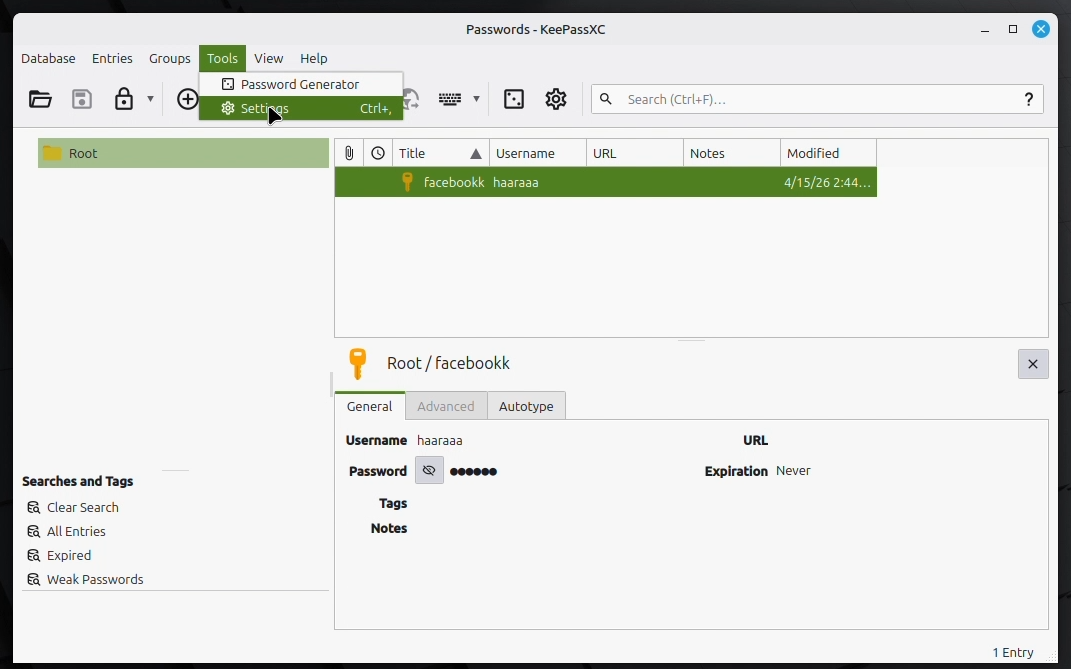
It’s a modern, secure, and open-source password manager that helps you store all your login details safely in one place. Instead of remembering dozens of weak passwords or reusing the same one everywhere, you can generate strong, unique passwords and store them securely.
One of the biggest advantages of KeePassXC is that it stores your data locally in an encrypted vault file. This means your sensitive information stays under your control rather than being stored on remote servers. For users who value privacy and security, this local-first approach offers peace of mind while still providing powerful password management features.
KeePassXC integrates well with Linux Mint and supports secure password generation, automatic form filling, and organized storage for login credentials, notes, and other confidential information. The interface is clean and straightforward, making it easy to search for saved passwords or update existing entries whenever needed. Once you start using a password manager like KeePassXC, maintaining strong security habits becomes much easier.
Another reason KeePassXC is worth installing early is cross-platform compatibility. The same encrypted vault file can be used across Linux, Windows, and macOS systems, allowing you to keep your passwords consistent no matter which device you are using. This flexibility makes it especially useful if you work across multiple computers.
You can find KeePassXC in the Software Manager or install it using the terminal with the simple apt command:
sudo apt install keepassxcMany users also choose the Flatpak version because it often receives updates more quickly and ensures compatibility across different Linux setups.
8. Heroic Games Launcher
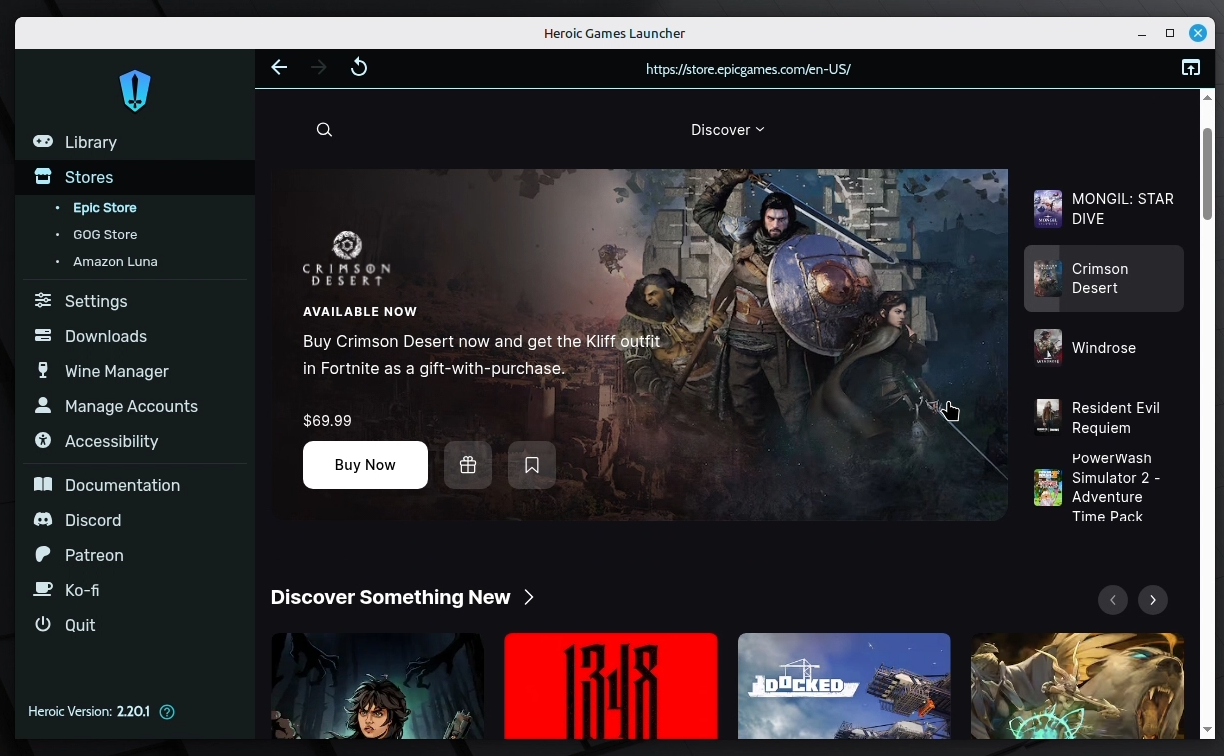
If you play games from multiple storefronts, you probably have titles spread across platforms like Epic Games or GOG. The problem is that these services do not provide official native Linux clients, which can make accessing your game library on Linux Mint feel inconvenient. That is exactly where Heroic Games Launcher becomes incredibly useful.
Heroic Games Launcher is a free and open-source tool designed to bring your game libraries together in one clean interface. After signing in to your supported accounts, you can browse, download, and launch your games. Behind the scenes, Heroic automatically configures compatibility tools such as Wine or Proton, allowing many Windows-based games to run smoothly on Linux without complicated setup steps.
One of the biggest advantages of Heroic is how simple it makes Linux gaming. Instead of manually configuring compatibility layers or tweaking settings for every game, Heroic handles most of the technical work automatically. This makes it easier for beginners to enjoy gaming on Linux Mint without needing deep technical knowledge. Even experienced users appreciate how much time it saves when managing large game libraries.
Heroic Games Launcher can also be used for more than just games. If you have Windows applications distributed as EXE files, you can add them manually to Heroic and run them using Wine or Proton. This flexibility makes it a helpful tool not only for gaming but also for running certain Windows-only programs when native Linux alternatives are not available.
Installing Heroic Games Launcher on Linux Mint is straightforward, and many users prefer installing it through Flatpak because it provides the latest version with improved compatibility. Once installed, it gives Linux Mint a much stronger gaming experience, making it easier than ever to access your favorite titles without leaving the Linux environment.
9. Obsidian
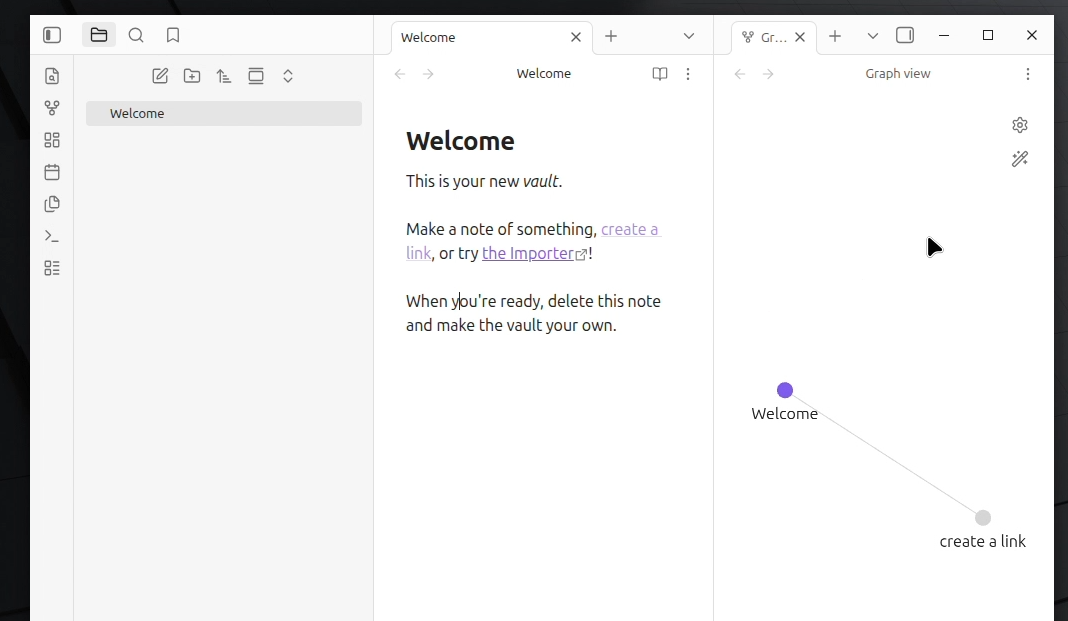
Although there are hundreds of note-taking apps, the reason I love Obsidian is that unlike many modern productivity tools, it does not lock your data into a cloud service or subscription model. Instead, all your notes are stored locally on your system as plain Markdown files, which means you fully own and control your information at all times.
Also, what makes Obsidian stand out to me is the way it connects ideas. Through features like backlinks and graph view, it allows you to link notes together and visually explore how your thoughts, projects, and knowledge relate to each other. Over time, this turns a simple note-taking app into a powerful personal knowledge system that adapts to your workflow.
It also stays minimal for simple note-taking and can evolve into a highly customized workspace using community plugins that add features like kanban boards, calendars, habit tracking, and more. This flexibility is what makes it especially popular among writers, students, developers, and researchers.
For installation, I recommend downloading the official AppImage from the Obsidian website and running it directly without complex setup. Once installed, it integrates smoothly into your workflow and starts feeling like a central hub for your ideas and projects.
Final Thoughts
Linux Mint is stable, polished, and designed to feel familiar right from the start. However, what truly makes it powerful is the ecosystem of free and open-source applications that you can build on top of it.
Also, the Software Manager and Flatpak make it easy to experiment, install new tools, and remove anything you do not need without leaving behind clutter. So take your time, explore these applications, and build a setup that fits the way you work.