Whenever people think of Linux, they often imagine it running great on older hardware, and mostly that is true. Many Linux distros are much lighter than Windows and other operating systems out of the box. But the moment you start adding themes, extensions, and fancy visual tweaks, things can slow down. There are a few GUI features that quietly eat up CPU and RAM without giving much back. Turning them off can make your system, especially older machines, feel a lot snappier.
Disable Window Animations & Transitions
One of the very first things I do is turn off all the fancy window animations and transitions. These animations and transitions are visually appealing and enabled by default, but they consume system resources. On a powerful system this might not be a problem, but for users like me who run Linux on slower hardware, it can feel like a drag.
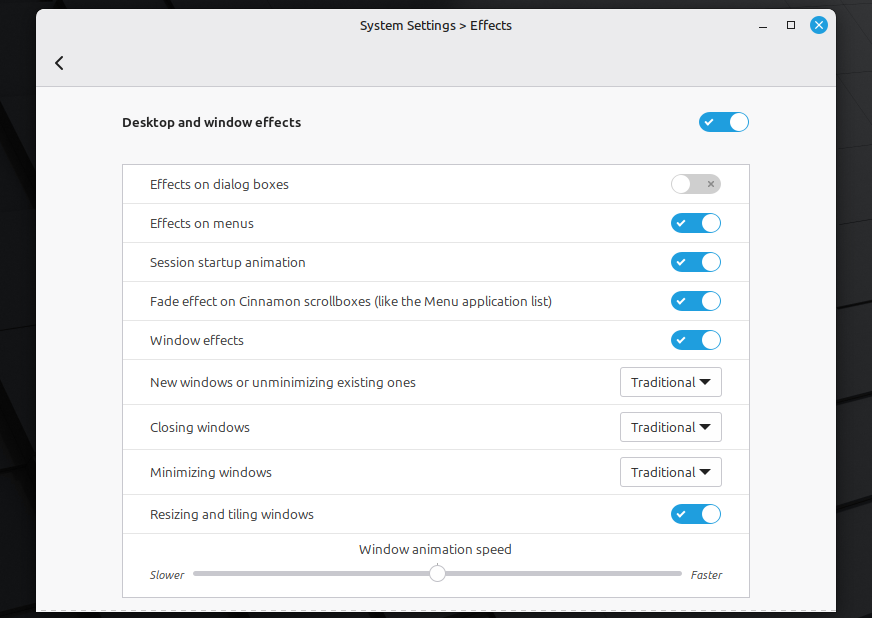
Disabling these animations varies depending on your desktop environment. For example, if you’re using GNOME, you’ll want to install the GNOME Tweaks tool and toggle off Animations. Similarly, in KDE’s System Settings, go to Workspace Behavior or Desktop Effects and disable animations there. The exact menu path varies by distro, but the idea is the same.
Turn Off Desktop Search Indexing
Modern Linux desktops often come with a built-in search indexer, a background service that scans your files to make searches fast. This means every file you add or change gets cataloged behind the scenes (GNOME’s Tracker or KDE’s Baloo, for example). It sounds handy, but indexing files can consume CPU and disk resources, especially during initial scans or when many files change. On older or lower-powered hardware, if you rarely use the desktop search feature, it’s often wasted effort.
Depending on your distro, there are easy ways to switch off indexing. For example, on GNOME, the simplest method is to open Settings > Search and turn off the file search. This prevents tracker from indexing files for desktop search and significantly reduces its background activity. You can follow your distro guide to turn off the desktop file search option. I personally prefer finding something through command-line tools like fd, grep, fzf, as they are fast and give you more control.
Disable File Manager Thumbnails & Previews
File managers like Nautilus or Dolphin default to showing image and video thumbnails for every file in a folder. This is very useful if you’re browsing your photos, but it can really slow you down in folders with hundreds of files. Your system has to read each file, generate the thumbnail, and then display it.
Generating these previews increases CPU and disk usage, and on slower drives or low-powered systems, the file manager can lag or freeze temporarily. It has to decode, resize, and cache each file, which adds up quickly in large directories. Disabling thumbnails stops this background work, making folder navigation much faster.
To turn off thumbnails, as in Nautilus, open your file manager’s preferences and set Show Thumbnails to Only for folders or Never. Now, when you open a folder full of pictures, you see just generic icons until you click on a file. It’s much faster to list and sort files without waiting for previews.
Remove Unnecessary Extensions & Applets
Desktop environments like GNOME, Cinnamon, and KDE Plasma make it easy for you to add all sorts of extras, such as weather indicators, extra clocks, system monitors, and more. They’re great for customization, but every single one runs in the background, often as small JavaScript programs hooked right into the shell process. Even when you’re not using them, they quietly consume memory and sometimes CPU.
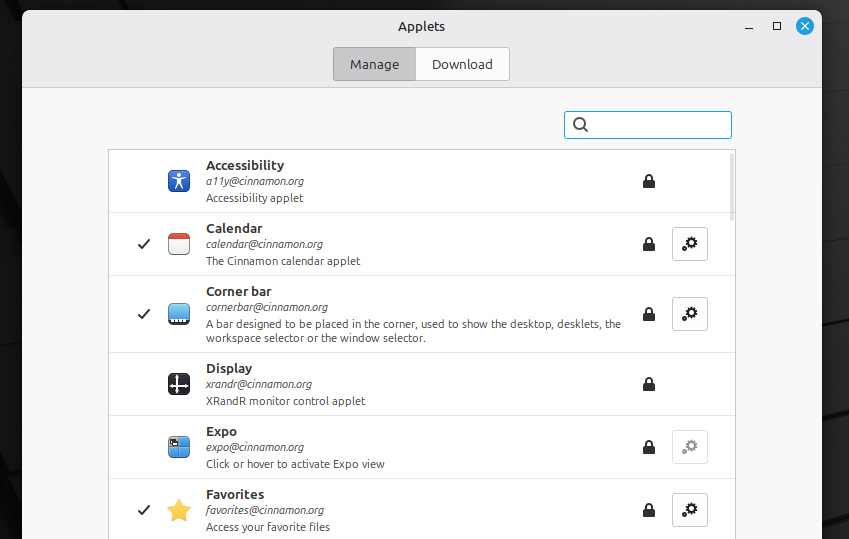
The most effective approach is to remove anything that is not used daily or that duplicates features already built into the desktop. In GNOME, this can be done through the Extensions app or the extensions.gnome.org manager by simply toggling off or disabling unneeded items. In Cinnamon, you can remove the extras from the panel applets or desklets, and in KDE, you can also remove unnecessary widgets or plasmoids.
Disable Startup Applications
Many programs (like update managers, chat apps, cloud sync tools, and even printer utilities) add themselves to the list of things that start when you log in. Apps like Discord, WhatsApp, Steam, and a few others are also enabled by default to auto-start when you log in to your system. It’s convenient for those tools to be always ready, but it means that with every login, you’re immediately giving each of them a slice of RAM and CPU, whether you need them or not.
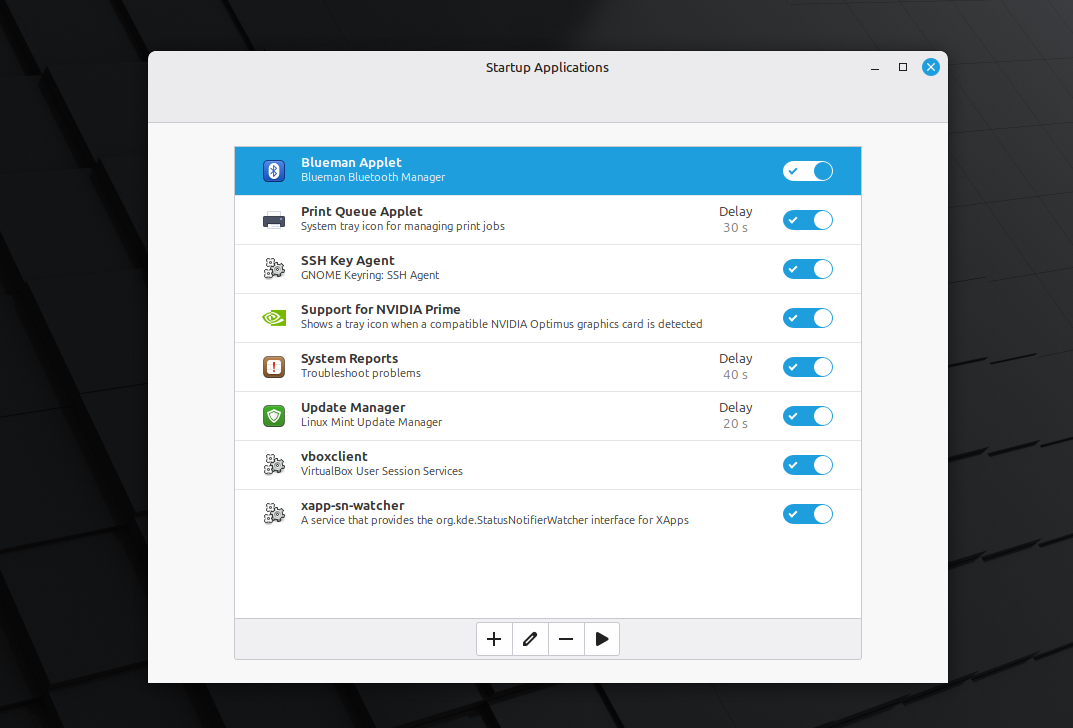
You can usually find the startup settings in your menu (search for “Startup” or “Session and Startup”). There you’ll see a list of programs set to run at login. From there, disable anything non-essential. If you need the program later, you can start it manually—you’re not deleting it; you’re just stopping it from auto-starting.
Disable Transparency & Blur Effects
Transparency and blur effects look really nice—things like frosted-glass panels, terminals that faintly show the desktop behind them, or menus with a softly blurred background. They make modern desktops in GNOME, KDE, and others feel sleek. But all that beauty comes at a cost: your computer has to work harder to draw and refresh those layers. On laptops or machines with basic graphics, this extra effort can cause small delays, choppy movement, or quicker battery drain.
Turning these off is pretty easy. In KDE, go to System Settings > Desktop Effects and switch off blur, or change your theme to remove transparency in window decorations. In GNOME, a lot of the blur comes from extensions like Blur My Shell—simply disable or remove it. If you want to clean up the last bits, a “No Blur” extension or dconf-editor can help. You’ll end up with solid colors and plain panels instead of fancy glass effects. It’s a small style change, but you get noticeably better speed and responsiveness in return.
Reduce Workspaces & UI Extras
Linux desktops love giving you lots of workspaces and fancy UI touches, such as multiple virtual desktops, hot corners that trigger overviews, auto-hiding docks, dashboard overlays, extra panels, or edge effects. They’re useful if you rely on them, but if you don’t, they just sit there using memory and running small background checks or animations. Check each of these features and turn them off if they’re not really important to you.