Many users prefer Linux Mint because of its clean and minimal experience. Everything just works, and the desktop feels simple and distraction-free. But for some users, including me, it can feel a bit too clean and minimal and may require a little more customization, something that adds usefulness without ruining that clean look.
That is where desklets come in. They are small desktop widgets that add useful features right onto your screen, helping you stay organized and get things done faster without changing the overall look of your setup.
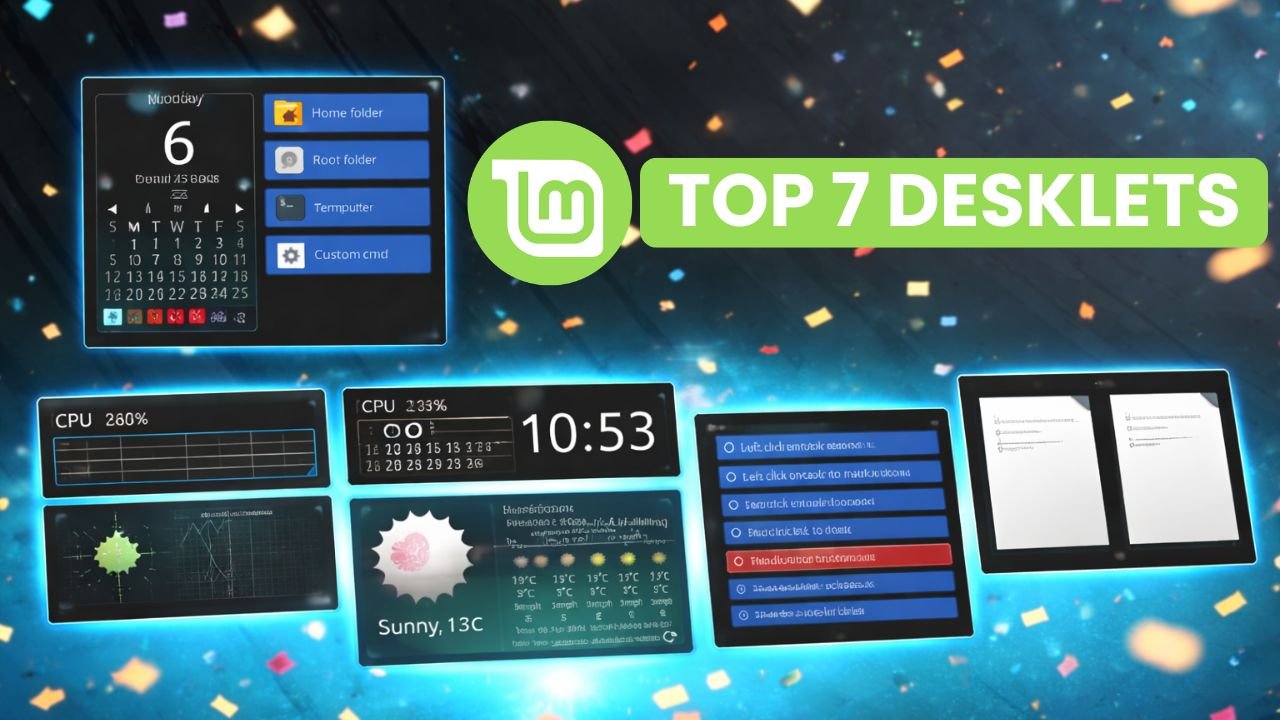
In this article, I will share some of my favorite desklets that I personally use to make my Linux Mint desktop more practical and efficient. Each one solves a specific problem and adds real value to my daily workflow.
1. Quick Links Launcher
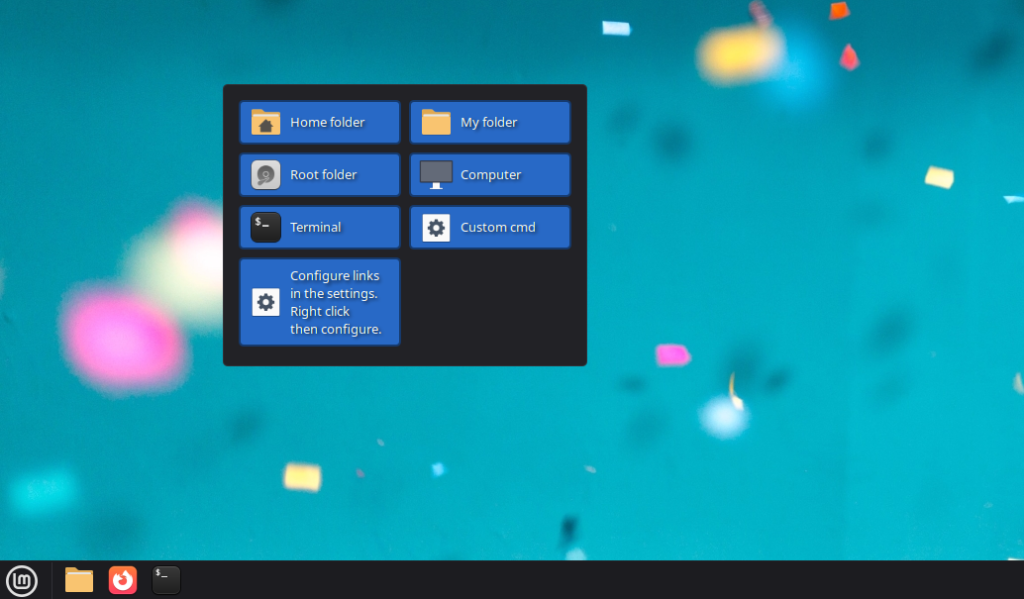
Navigating menus wastes valuable time. I absolutely hate clicking through multiple menus just to launch the same application that I need every morning. Instead, I use a Quick Links desklet, which can create shortcuts for apps, folders, URLs, scripts, or even custom commands and display them right on my screen for easy one-click access.
For example, I set mine up with my most-used apps like VS Code, a shortcut to my Downloads folder, a script that updates my system, and even a quick reboot button. The whole row sits in the top-right corner of my screen—always visible, always ready.
Setting it up takes less than a minute. Simply right-click the desktop, head to “Add Desklets,” search for Quick Links, and install it.
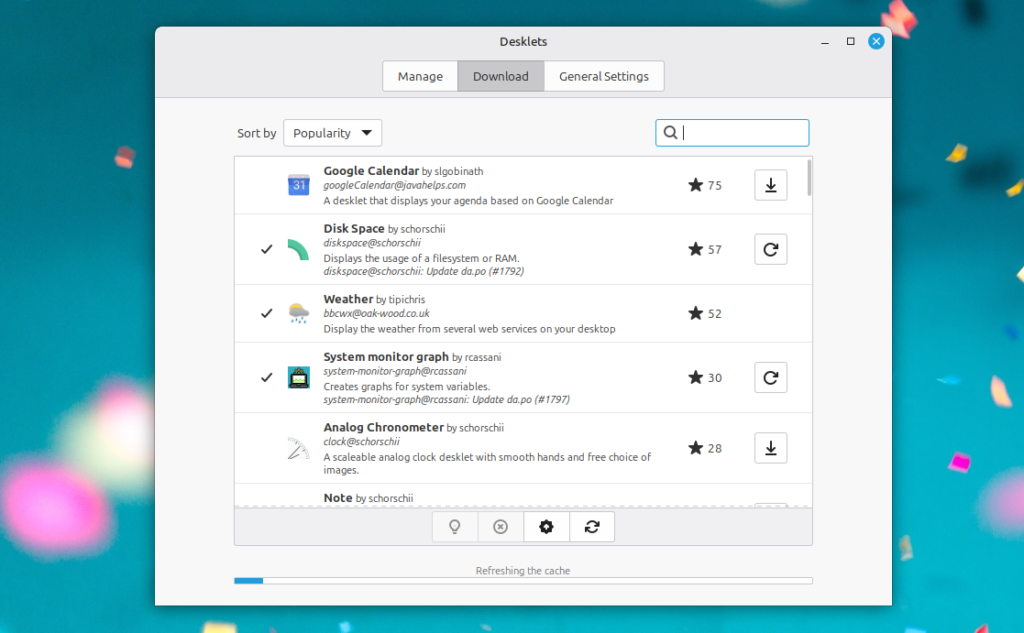
From the settings panel, you can add entries one by one, give each button an icon, a label, and a command. I recommend spending a little time here because the more thought you put into your layout upfront, the more time you will save every day afterward.
From the settings, the configuration options give you total control. You can choose icons, colors, adjust grid spacing, and even group them into a neat panel that blends with your wallpaper.
2. TODO Desklet
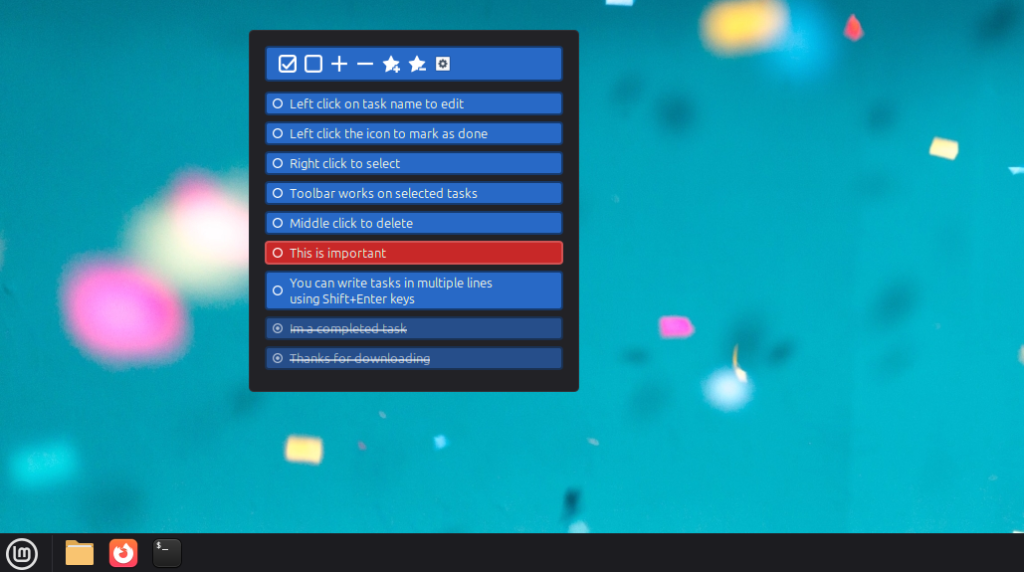
I personally do not like hiding my daily tasks inside a closed application or note-taking apps because I end up forgetting them entirely. Out of sight truly means out of mind for me. I want my daily tasks visible right on my screen so they keep reminding me what to do. In Linux Mint, the TODO Desklet provides an always-visible, highly readable task list right next to my desktop calendar.
You can use this desklet for daily tasks, quick reminders, and small goals you do not want to forget. I also do not want a complex TODO app with lots of features or distractions. I just want a simple and clean list. It includes basic features like adding entries, marking items as done (which strikes through and fades them out), reordering items, setting priority colors, and adjusting the width of the list.
3. Note Desklet
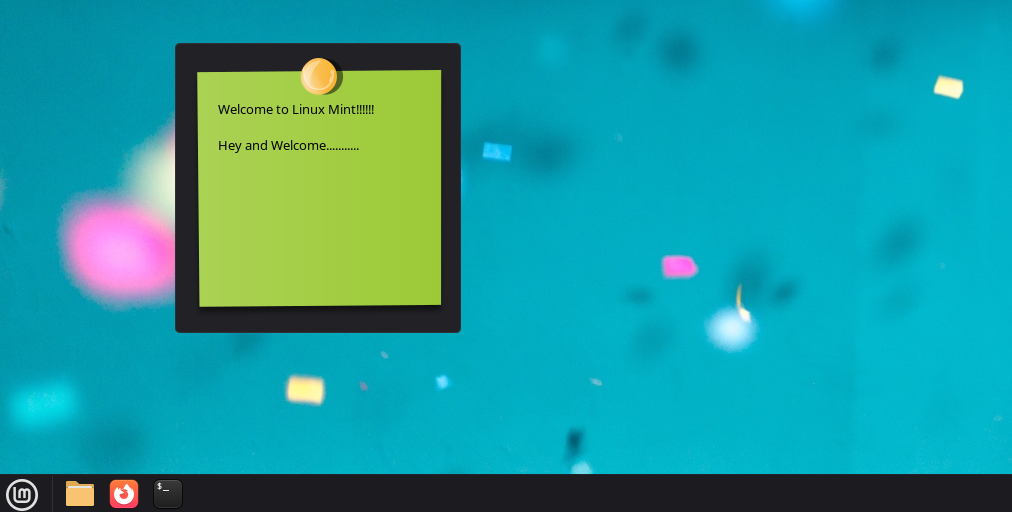
The Note Desklet is basically what Sticky Notes tries to be—but done right. It gives you a clean, resizable text area directly on your desktop where you can quickly jot down ideas, commands, meeting notes, or random thoughts you do not want to lose.
What makes it stand out is how polished it feels. The text is easy to read, resizing is smooth, and it looks clean instead of cluttered. I mainly use it as a quick scratchpad. If I am working in the terminal and need to save a command for later, I just drop it there. If someone tells me something important during a call, I type it instantly. No switching apps and no searching through files—just glance and read.
It also works perfectly alongside the TODO Desklet. They serve different purposes. TODO is for structured tasks with checkboxes, while Note is for freeform thinking that does not fit into a list.
You can also customize it by changing colors and creating multiple notes for different uses. I keep separate ones for ideas, quick references, and temporary notes, which helps keep everything organized without feeling messy.
Another thing I appreciate is how lightweight it is. It runs quietly in the background without any lag or noticeable battery usage. Unlike traditional sticky note apps that stay hidden in the system tray, this one remains visible and useful all the time.
4. System Monitor Desklet
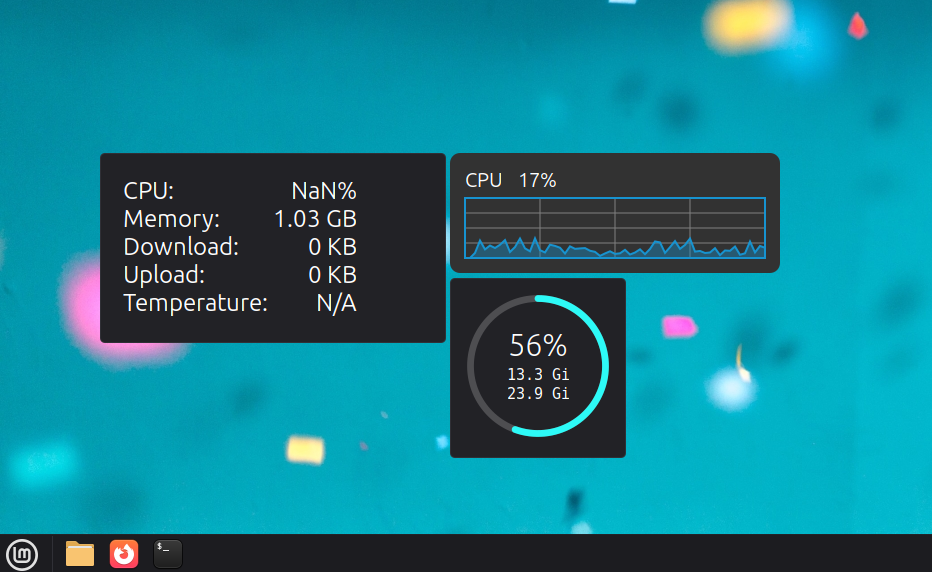
If you are using Linux Mint, you probably care about how your system is performing. Whether you are on older hardware or just like keeping an eye on things, having that information visible can make a big difference. That is where the System Monitor Desklet comes in.
It shows real-time stats like CPU usage, RAM usage, disk activity, and network performance—all directly on your desktop. Instead of opening a system monitor or running a command, you can just glance at your screen and instantly know what is going on.
I personally keep an eye on RAM usage when I have multiple apps open. It helps me quickly figure out what might be slowing things down. It also acts like an early warning system. If something unusual happens, like a sudden CPU spike, you notice it right away.
You can also choose what to display, whether it is CPU, RAM, or both, and pick a layout that fits your desktop. I prefer a simple compact view that shows the essentials without taking up much space.
5. Weather Desklet
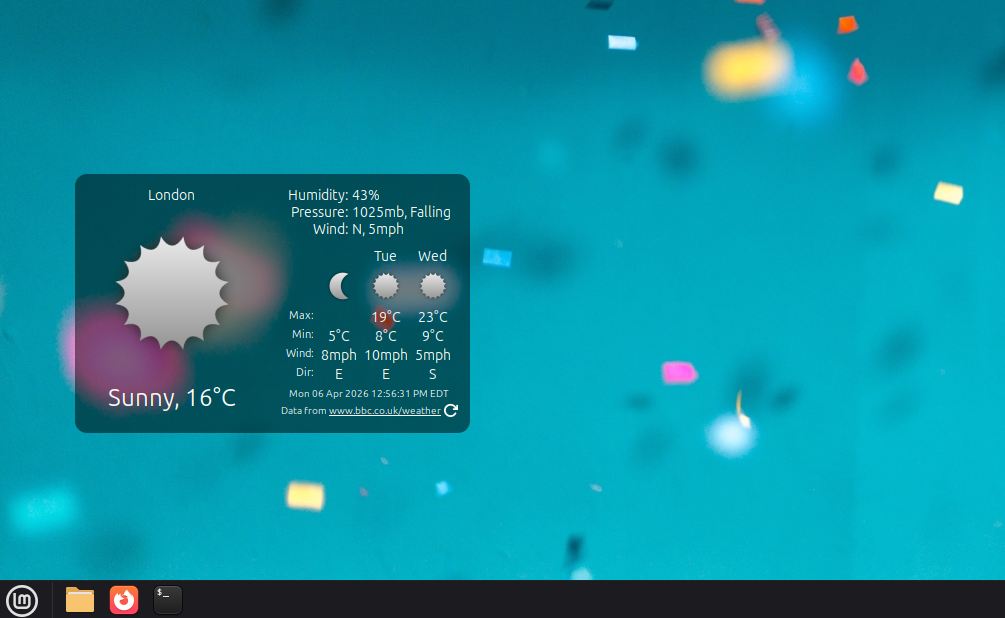
Checking the weather usually involves pulling out a smartphone or opening a completely new browser tab. Both of those actions pull my attention away from my current work. The Weather Desklet neatly solves this by putting the current temperature and a reliable three-day forecast directly on my screen.
I configured mine to sit quietly right above my quick links. It uses a clean, beautifully minimalist icon set that represents rain, clouds, and sunshine perfectly without looking cartoonish. Now I know exactly when a storm will hit before I decide to take an afternoon walk to clear my head.
It pulls meteorological data reliably from the internet and updates itself silently in the background. You can display the wind speed, humidity levels, and the “feels like” temperature. Planning my physical day around my digital workday has never been easier.
Setting it up is simple. You just enter your location, choose your preferred units, and it starts updating automatically in the background. It pulls reliable data and keeps everything up to date throughout the day.
The display is usually compact — a small icon, a temperature reading, and a brief condition label. It doesn’t take up much space, and the information density is perfect. You don’t need a full weather app on your desktop. You need enough information to decide whether to grab a jacket, and this delivers exactly that.
6. Calendar Desklet
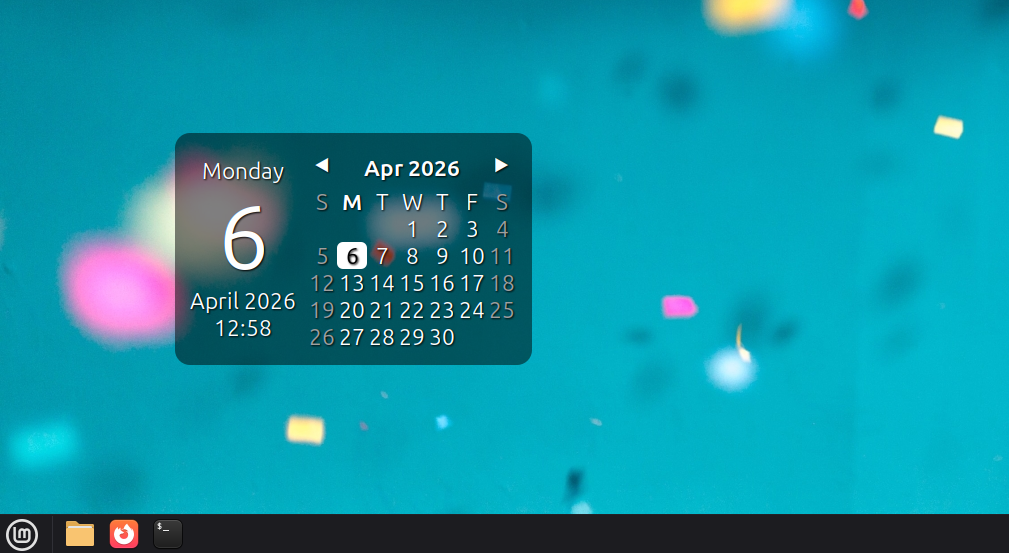
This is one of those simple additions that makes a bigger difference than you expect. The Calendar Desklet puts a full monthly calendar directly on your desktop, so you can always see the date without opening anything. At first, it feels like a small thing, but over time, it genuinely helps you stay more organized.
When the date is always visible, deadlines feel more real, time does not slip by as easily, and you naturally start planning ahead. It acts as a subtle reminder that keeps you aware of your schedule throughout the day.
I placed mine in the top right corner and styled it to match my theme. It blends in nicely while still being easy to read. One quick glance shows me the entire month, which makes it easy to check upcoming plans or answer simple questions like whether I am free on a certain date.
The desklet is clean and customizable. You can adjust things like font size, colors, and transparency so it fits perfectly with your setup. Some versions even let you switch between months or add small notes to specific days.
I also pair it with a Clock Desklet placed in the bottom left corner, using a clean analog style that matches my setup. It shows the time with smooth second updates and even includes a subtle hourly chime, which helps me stay aware of time without breaking focus. Together, the calendar and clock give me a complete sense of both date and time at a glance, making my desktop feel more organized and polished.
7. Digital Photo Frame
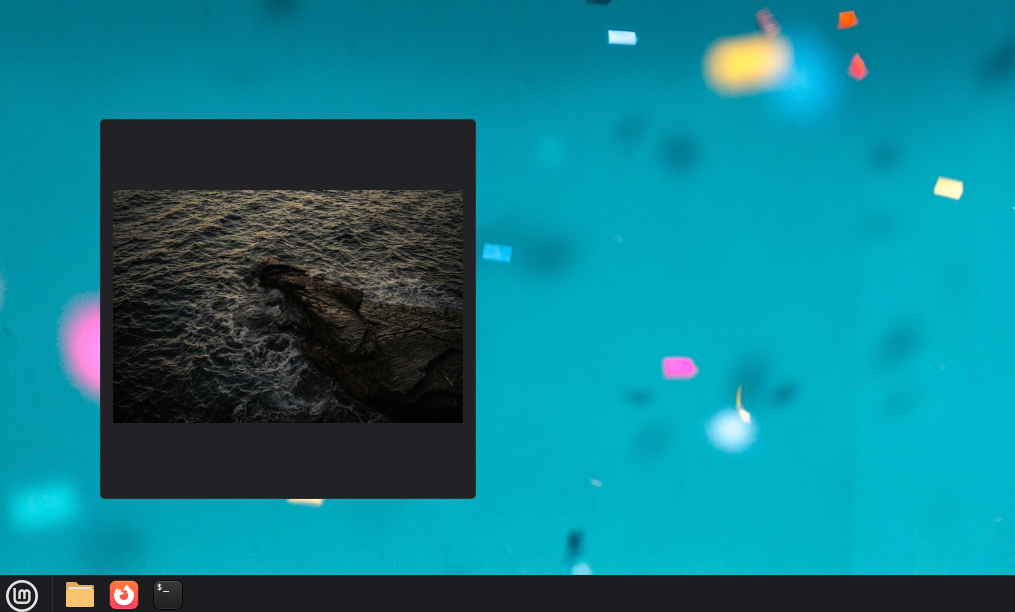
This one is less about productivity and more about making your desktop feel alive and aesthetic. The Digital Photo Frame desklet cycles through images from a folder and displays them right on your desktop. You just point it to a folder, set how often the images change, and it quietly runs in the background.
I set mine up with wallpapers I like, a few project screenshots, and some personal photos. It instantly made my desktop feel more personal instead of looking like a default setup.
What I like most is the small moments it creates. Every now and then, a new image appears, and it breaks the monotony of staring at the same screen all day. It is subtle, but it genuinely refreshes your mind during long sessions. You can also customize everything from the folder source to the transition speed, size, and placement. I added a simple frame and a soft transition so it blends nicely with the rest of my setup.
The best part is that it runs quietly without affecting performance. It just sits there, doing its job while making your workspace feel warmer and more personal.
Final Thoughts
Desklets might seem like small additions at first, but once you start using the right ones, your entire workflow changes. Your desktop becomes more useful, more organized, and more personal. And the best part? You don’t need to install heavy apps or change your system drastically. These are lightweight tools that fit naturally into your environment.
If you’re just getting started, try adding one or two desklets first. See how they fit into your routine, then build from there.